The Spare SSD in Your Drawer Is a £45 Backup Appliance
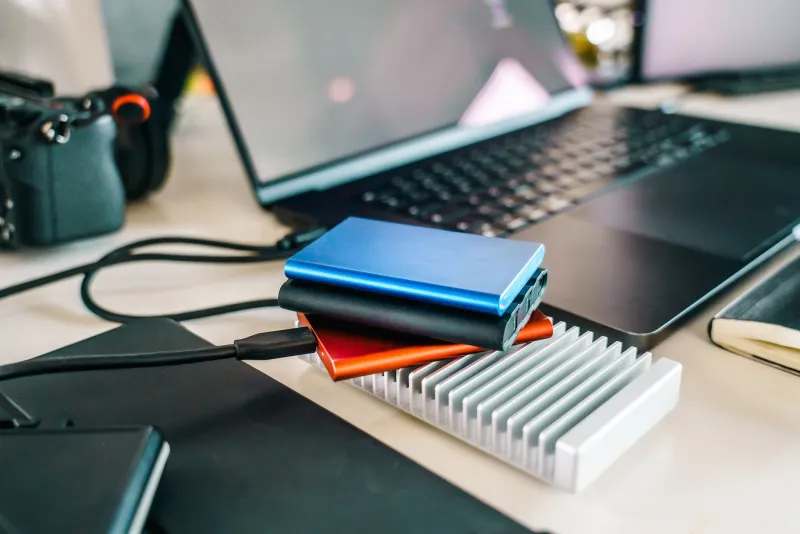
Most home offices have the same drawer: a tangle of old cables, a dead router, and a SATA SSD pulled from a laptop that was replaced two upgrades ago. That drive is probably still fine. SATA SSDs do not quietly rot on a shelf the way old mechanical drives can, and even a modest 250GB or 500GB model is plenty for a weekly system image of a small office PC.
The missing part is not storage. It is a sensible enclosure, a test that tells you the truth about speed, and a backup routine you will actually follow. Done properly, this is a £45 project — not a £45 subscription that renews until you forget it exists.
Buy the enclosure, not the lottery ticket
You need a USB-to-SATA enclosure for a 2.5-inch drive. Not an NVMe caddy, not a docking station with a dozen slots, and not a bare cable that leaves the drive flopping around on the desk. A simple aluminium or plastic box with a USB-C or USB Micro-B port is fine.
The important part is the bridge chip inside. Cheap no-name enclosures often use whatever controller was cheapest that month, and the listings rarely tell you which one you are getting. Look for a model that explicitly mentions UASP support and a known chipset family such as ASMedia’s ASM1153E or JMicron’s JMS578. Those are not magic, but they are well understood, widely supported by Windows and Linux, and far less likely to produce the dreaded “USB device has malfunctioned” message halfway through an image.
A USB 3.2 Gen 1 enclosure is enough. That is the old USB 3.0 speed, 5Gbps, and it comfortably exceeds what a SATA SSD can do. Do not pay extra for USB 3.2 Gen 2 or Gen 2x2 unless you are buying an NVMe enclosure. SATA is the bottleneck, and marketing labels will not change that.
Expect to pay £20 to £30 from a UK retailer such as Scan, Ebuyer, CCL or Box. Add a decent labelled cable and a small padded case and you are near £45. If the enclosure includes a short USB-C cable, check that your PC has the right port before you recycle the box.
Test the real write speed before you trust it
Plug the drive in, format it, and copy a large folder — 20GB or so of video files or old project archives. Watch the transfer window. A healthy SATA SSD in a decent enclosure should sit somewhere around 350MB/s to 450MB/s for large sequential writes, and it should not collapse to 30MB/s after thirty seconds.
If it does collapse, you have probably bought a bridge chip that does not support UASP, or the drive is thermal-throttling inside a sealed plastic box. Check the enclosure’s documentation, try another cable, and test again on a different port. If the speed remains awful, return it. A backup drive that takes six hours to write 200GB is a backup drive you will stop using.
Also check that the enclosure passes through SMART data. Free tools such as CrystalDiskInfo should be able to read the drive’s health and temperature. If the bridge chip hides SMART entirely, you are flying blind. That is not fatal for a secondary backup, but it is a reason to spend another £10 on a better box.
Label it like it matters
Write the date, the drive’s capacity and the machine it belongs to on a sticky label. “Old SSD” is not a backup label. “OCT 2026 — OFFICE PC — 500GB SATA” is. If you rotate two drives, use two labels and two cases. Keep the cable with the drive, not in the drawer of mystery cables.
Encryption is worth ten minutes of your time. If the drive leaves the house — even to sit in a relative’s desk — a stolen or lost enclosure should not hand over your accounts, invoices and client files. BitLocker To Go on Windows Pro, or VeraCrypt on any edition, will do the job. Store the recovery key somewhere that is not the drive itself.
A weekly image beats a heroic rescue
The routine should be boring. Once a week, plug the drive in, run an image of the system drive, and unplug it. Do not leave it connected permanently. Ransomware and accidental deletions travel through mapped drives, and an always-on backup is just another target.
On Windows, the built-in Backup and Restore (Windows 7) tool still exists but feels its age. Macrium Reflect Home is the polished option, Hasleo Backup Suite Free is a capable no-cost alternative, and Clonezilla is there if you like a text interface and a cup of tea while it works. Pick one, write the schedule on a calendar, and keep the rescue media on a USB stick in the same case as the backup drive.
For a genuine 3-2-1-style setup, you want three copies: the working files on the PC, the image on the USB SSD, and a third copy somewhere else. That third copy does not have to be a subscription. A second old drive kept at a family member’s house, or a rotating drive that lives in a desk at another office, is enough for a small UK home office. Swap it monthly. Cloud backup is convenient, but it is not the only answer, and it is certainly not the cheapest one if you already own the hardware.
Prove the restore before you need it
A backup you have never restored is a rumour. Once a quarter, boot the rescue media on a spare machine or a virtual machine and restore a few folders from the image. Check that the files open. Check that the permissions are sane. Check that you remember how the software works when you are not panicking.
If you have a spare SSD, restore the whole image to it and boot from that drive. It is the only way to know that the image is bootable and that your storage controller drivers survived the trip. Twenty minutes of mild inconvenience now is much better than discovering the problem at 11pm on a Sunday before a Monday deadline.
The £45 maths
A used 500GB SATA SSD has almost no resale value, but as a backup target it is worth more than the £20 someone might offer on a marketplace. A decent enclosure is £25. A cable and case might be another £10. Encryption costs nothing but attention. The result is a local image backup that does not renew, does not depend on broadband, and does not care whether the cloud provider has a bad afternoon.
Keep the drive cool, keep it labelled, keep it disconnected between runs, and test a restore. That is the whole trick. Your old SSD was never the weak point — the weak point was leaving it in the drawer and hoping the cloud would cover everything.