Aging Family Desktop? Spend £150 Before You Spend £700
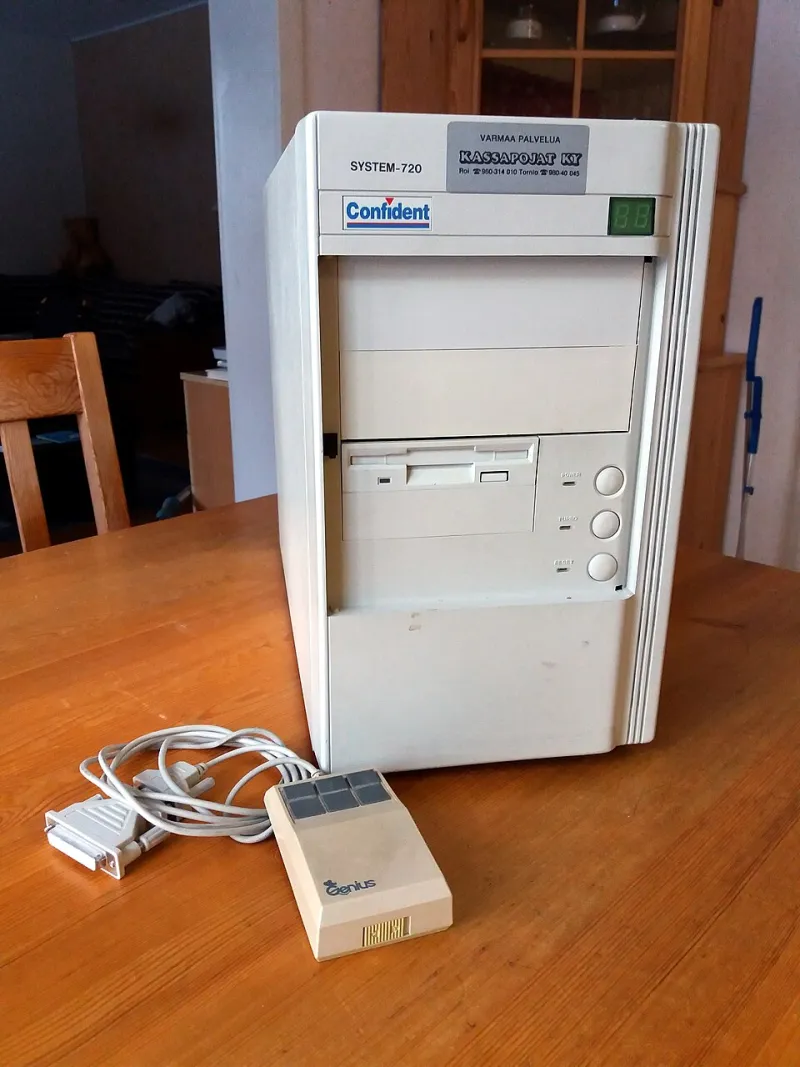
Photo: Methem (Mikko J. Putkonen), CC BY 4.0, via Wikimedia Commons
An ageing family desktop is a funny thing. It boots, it browses, it prints the school letter, and then someone tries to open a dozen browser tabs and it sounds like a leaf blower. Replacing it is easy to justify, but a £150 parts bill can buy another two or three years if you pick the right machine. Here is the HitPCs upgrade route, with the checks we would run before spending a penny.
First, decide whether it is worth opening the case
Age alone is not the test. A five-to-seven-year-old desktop is usually a 2019-2021 machine, which is often new enough to have DDR4 memory, SATA or NVMe storage and a CPU that can run Windows 11. A ten-year-old office box with DDR3 and a proprietary motherboard is a different story.
Check the model number and the CPU. On Windows, open Task Manager or Settings > System > About. Then run Microsoft's PC Health Check app. Windows 11 needs TPM 2.0, Secure Boot capability and a supported CPU. Intel 8th-gen and newer is the usual line, and AMD Ryzen 2000 and newer with some exceptions. If the machine fails on the CPU, do not spend £150 on it unless you have a clear upgrade path; put the money toward a replacement.
The £150 shopping list
For a typical DDR4 family tower, the sensible basket is:
- 1TB SATA or NVMe SSD: £45-£65
- 16GB (2x8GB) DDR4 RAM: £30-£45
- Budget tower cooler: £20-£30
- Thermal paste: £5-£8
That is roughly £100-£150 depending on what you already have. If the machine already has 16GB, skip the RAM and spend the difference on a better SSD or a USB Wi-Fi adapter. If it has 4GB, the RAM is the first upgrade, not the SSD.
Step 1: Clone or clean install
The SSD is the biggest single improvement. A hard drive will make even a decent CPU feel slow in 2026; a SATA SSD is a huge step up, and NVMe is better if the board supports it.
Back up first. Then decide whether to clone or clean install. Cloning is quicker if the old drive is healthy, but a clean Windows 11 install is cleaner for a family PC that has collected years of junk. If you clean install, you may not need a new licence: a digital licence tied to the motherboard usually reactivates automatically. Check before you wipe.
Step 2: Match the RAM properly
Open Task Manager and check the speed and slots. Then use CPU-Z or the motherboard manual to see how many slots are free. Two 8GB sticks in the right slots will usually beat one 16GB stick on integrated graphics. Do not mix speeds if you can avoid it; if you must, the slower stick sets the pace.
DDR4 2666MHz is fine for office work. 3200MHz is nice if the board supports it. If the machine uses DDR3, think hard: DDR3 is old, expensive for what it is, and a sign that the rest of the platform is near the end. A £150 upgrade on DDR3 is usually poor value.
Step 3: Cooler and thermal paste
If the stock cooler is noisy or the PC runs hot, a budget tower cooler is money well spent. Check the socket and the case clearance. Some OEM machines use proprietary mounting, so measure before you buy. Thermal paste is cheap; use a pea-sized blob and do not spread it like butter.
This is also the moment to clean the dust out of the heatsink and fans. A five-year-old family PC is often full of fluff. A can of air and a soft brush can do as much for temperatures as a new cooler.
Step 4: When not to touch the PSU or CPU
The PSU is the one part where we would usually say leave it alone unless it is failing or you are adding a graphics card. A branded 300W-400W unit is fine for an office PC. A no-name unit is a risk, but replacing it can be awkward in a proprietary case with non-standard connectors.
The CPU is rarely worth upgrading on an old family desktop. By the time you have found a compatible used chip, checked the BIOS support and paid for it, you are close to the cost of a better second-hand machine. If the CPU is the bottleneck and it is not Windows 11 compatible, replace the PC instead.
Step 5: Windows 11 compatibility and the small extras
Windows 10 support ended in October 2025, so a family PC running it is now out of support. Windows 11 is the practical target. Check TPM 2.0 and Secure Boot in the BIOS. On AMD boards, look for fTPM; on Intel, PTT. If the CPU is supported, enable them and update the BIOS if needed.
Do not use bypass tricks on a family PC that handles banking and schoolwork. It is not worth the risk. If the hardware is not supported, put the £150 toward a replacement.
The upgrade-versus-replace decision tree
- Is the CPU on the Windows 11 supported list? No: replace, unless it is a spare machine.
- Is the memory DDR4 with a free slot? Yes: upgrade to 16GB.
- Does it have a hard drive as the main drive? Yes: fit an SSD.
- Is the case and PSU standard? Yes: a cooler is easy. No: stick to SSD and RAM.
- Does it already have 16GB and an SSD? Then £150 will not transform it; save for a replacement.
What £150 does not fix
It will not turn an old dual-core into a gaming PC. It will not fix a failing motherboard or a dying PSU. It will not make a 2014 all-in-one easy to open. And it will not add a modern Wi-Fi card if the machine has a proprietary slot; a £15 USB adapter is the pragmatic answer.
The verdict
For a five-to-seven-year-old DDR4 desktop with a supported CPU, £150 is a sensible spend. It buys faster storage, enough memory and a quieter cooler, and it keeps a working machine out of the skip. For anything older or more locked down, the honest advice is to put the money toward a replacement. Upgrading is only clever when the platform underneath is still worth keeping.