Swap Seats, Not Cables: The Sensible KVM Switch for a Two-Machine Desk
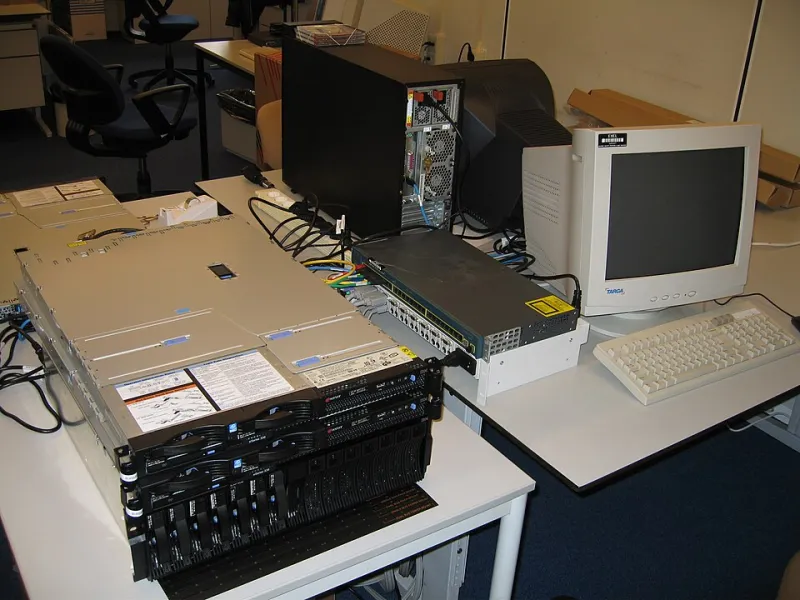
Photo: Jemimus, CC BY 2.0, via Wikimedia Commons
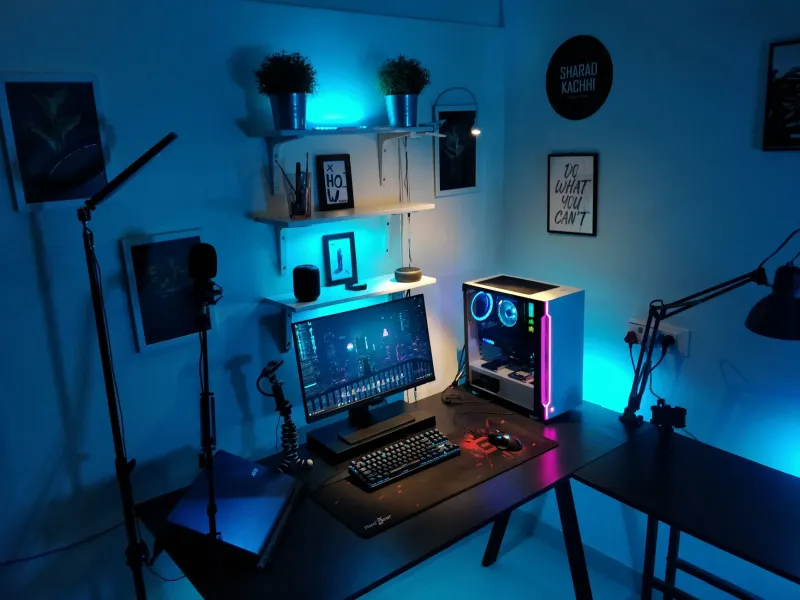
There's a particular kind of low-grade misery that comes from working at a desk with a laptop on the left and a desktop on the right. You finish a spreadsheet, reach for the keyboard, and realise the monitor is still staring at the other machine. So you unplug the DisplayPort, plug it into the laptop, wait for Windows to rearrange every window you'd carefully positioned, and then discover the mouse is still paired to the desktop.
A KVM switch fixes this for roughly the price of a decent takeaway. But the market is a minefield of spec-sheet optimism, and the difference between a £20 box that works flawlessly and a £20 box that makes you want to throw it out of the window is often a single line in the product description that nobody reads.
What a KVM switch actually does
KVM stands for keyboard, video and mouse. At its simplest, it's a little box with two sets of inputs and one set of outputs: two computers go in, one monitor plus your peripherals come out, and a button or hotkey toggles between them. Some models also pass audio, some add extra USB ports for a webcam or headset, and a growing number in 2026 offer USB-C on one input so a laptop can connect with a single cable.
What a cheap KVM does not do is charge your laptop, drive two external displays, or magically give you a docking station's worth of ports. That's important, because a lot of the disappointment people report online comes from expecting a switcher to behave like a dock.
The four specifications that decide everything
Video: match the version, not just the connector
"DisplayPort KVM" tells you almost nothing. DisplayPort 1.2 will do 4K at 60Hz. DisplayPort 1.4 will do 4K at 144Hz, or 8K at 30Hz if you're feeling ambitious. HDMI is the same story: HDMI 2.0 caps out at 4K 60Hz, HDMI 2.1 goes considerably further. If you have a 1440p 165Hz monitor and buy a switch that quietly tops out at 4K 30Hz, you'll get a picture — but it'll feel like treacle and you'll blame the monitor.
Work backwards from your actual screen. A 24-inch 1080p office panel needs almost nothing. A 27-inch 1440p at 100Hz needs DisplayPort 1.2 or better, and preferably a switch that explicitly states the resolution and refresh rate it supports rather than leaving you to guess.
Watch out for HDCP too. If you ever stream iPlayer or ITVX on the work machine, a switch that mishandles HDCP handshakes will give you a black screen on protected content while everything else looks fine.
USB: count the ports and check the generation
Most budget switches give you two or four USB-A ports on the output side, shared between the connected machines. Two is fine for a keyboard and mouse. Four lets you add a headset and a webcam. What the listing often glosses over is whether those are USB 3.0 or USB 2.0. Plenty of £20 units are USB 2.0 only, which is perfectly acceptable for input devices and completely useless for a USB 3.0 external drive or a 1080p webcam that wants more bandwidth.
If you need speed, look for USB 3.0 downstream ports and accept that you'll pay for them.
EDID: the gremlin that rearranges your windows
This is the specification nobody mentions and everybody suffers from. EDID is the handshake between the monitor and the computer that says "here's what resolutions and refresh rates I support". When you switch a KVM away from a machine, that machine sees the monitor disconnect. Windows responds by deciding the display has vanished, dumping all your open windows onto a phantom secondary screen, and resetting your carefully chosen 125% scaling.
Good switches emulate the monitor's EDID so each connected machine always believes a display is present, even when it isn't currently selected. Cheaper ones don't, and you get the window shuffle every single time. If the product page mentions EDID emulation or "keeps display signal active", that's a feature worth paying for. If it doesn't, assume it's absent.
USB-C power delivery: read the wattage
A USB-C input on a KVM is lovely in principle — one cable from the laptop and you're done. But check the power delivery rating. Some units pass through 60W, some 85W, some a miserly 15W that won't even keep a 13-inch laptop ticking over under load. If your laptop charger is 65W and the switch only handles 60W, you'll get a slow drain rather than a charge, which is worse than no PD at all because it lulls you into a false sense of security.
Also confirm whether the USB-C port carries video via DisplayPort Alt Mode. Some cheaper switches use USB-C purely for data and charging, with a separate HDMI cable for the picture. That's not wrong, but it's not the single-cable setup you thought you were buying.
The cables are half the battle
A KVM sits in the middle of your signal chain, and every cheap cable on either side of it degrades what arrives at the monitor. If you're running 1440p at high refresh over a three-metre DisplayPort cable that came free with a monitor in 2019, you'll get flickering or dropouts that look exactly like a faulty switch.
Buy certified cables at the length you actually need, keep them as short as is practical, and avoid the temptation to daisy-chain extension cables. If your switch ships with captive cables, check their length before ordering — 60cm is common and rarely reaches from a desktop tower to a monitor arm.
When £20 is genuinely enough
You have one 1080p or 1440p monitor at 60–75Hz, a keyboard and mouse, and you're happy to press a physical button to switch. Both machines are close enough that short cables reach. You don't need the laptop to charge through the switch. In that scenario, a basic DisplayPort or HDMI KVM at £20–£30 does the job perfectly well, and paying more buys you very little.
When to spend £70 on a dock instead
If any of the following apply, skip the cheap switch:
- You want one cable from the laptop to everything, including charging.
- You run a high-refresh or 4K display and need the full bandwidth preserved.
- You need USB 3.0 speeds for drives or a decent webcam.
- You want the laptop to wake the monitor automatically when you plug in.
A USB-C docking station with a built-in KVM function — or a dedicated KVM dock — handles all of that in one box. It costs more, but it removes three or four separate adapters and a nest of cables from your desk, which in a small office is worth something in its own right.
A five-minute setup checklist
- Set both machines to the same resolution and refresh rate before connecting the switch, so you're not troubleshooting two variables at once.
- Plug the monitor into the switch's output first, then add machine one, test, then machine two.
- If windows shuffle when you switch, check for an EDID setting in the switch's documentation or firmware.
- Test the keyboard's media keys and the mouse's side buttons on both machines — some switches drop certain HID reports.
- Label the inputs with a marker. You will forget which is which within a week.
A KVM switch is one of the few bits of office kit that genuinely earns its place on the desk. Get the specs right and it disappears into the background, which is exactly what you want from a £20 box.