BIOS Flashback Without the Sweat: A UK Upgrader’s Checklist for 2026
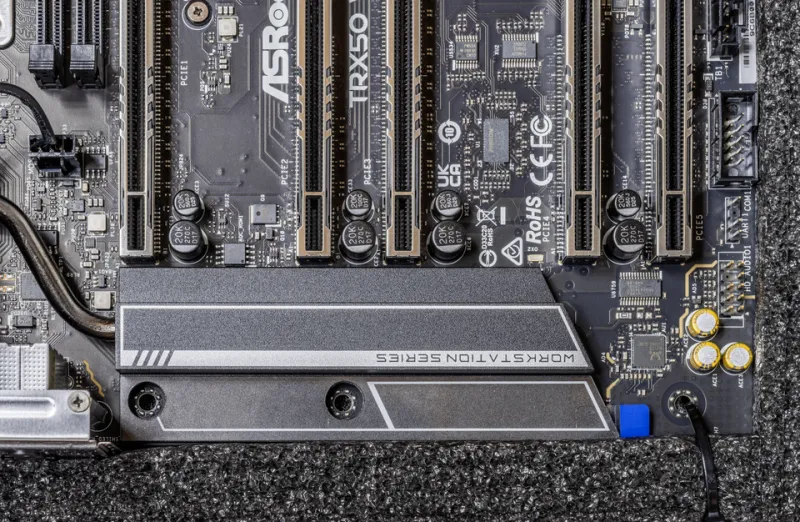
Photo: PantheraLeo1359531, CC BY 4.0, via Wikimedia Commons
So you’ve spotted a used Ryzen or a clearance Intel chip that looks like a bargain, and the motherboard in your cupboard already has the right socket. Tempting. The catch is that the board may not know the chip exists until its firmware has been updated. That is where USB BIOS Flashback earns its keep — but it is not a magic button, and treating it like one is how a £90 CPU upgrade turns into a replacement board and a wasted weekend.
Start with the board, not the CPU box
Before you order anything, open the motherboard manufacturer’s support page and find the exact model. Not the family name, not the retailer’s shorthand — the full model number and, if it is listed, the board revision. Manufacturers often ship several revisions under the same name, and the CPU support list can differ between them.
Look for the CPU support table and read the column that says something like validated since BIOS or minimum BIOS version. That is the version you need at a bare minimum. A retailer listing that says ready for latest generation is not proof that the box in the warehouse has the right firmware. UK stock sits around, especially on popular budget boards, and old inventory is normal.
Also check whether your board has a dedicated Flashback button. ASUS calls it BIOS FlashBack, MSI uses Flash BIOS Button, and Gigabyte has Q-Flash Plus. Some cheaper boards have none of this and need a supported CPU installed before they will flash. That changes the plan completely.
Pick the version you need, not the newest one
Newer is not automatically better. BIOS releases can add CPU support, fix security issues, improve memory compatibility, or introduce a regression that nobody notices until a forum thread appears six weeks later. If your board already runs the CPU you have, there is usually no reason to flash at all.
If you do need an update, read the release notes for the version that adds your CPU. Sometimes you cannot jump straight from an ancient BIOS to the latest one; the vendor may require an intermediate version first. Follow that chain. It is dull, but it is cheaper than recovering a board with a corrupted firmware image.
Beta BIOS versions deserve respect. They can be useful when a new CPU has just landed and the stable release is lagging, but they are not the default choice for a work machine. A beta may be outside normal support, and if it misbehaves the manufacturer may be less willing to help. That does not automatically void your statutory rights, but a failed flash caused by cutting power mid-write is not a manufacturing fault either.
The USB stick is where most upgrades go wrong
Use a small, ordinary USB drive. A 4GB or 8GB stick is fine; some boards are fussy about large drives. Format it as FAT32, not exFAT or NTFS, and use a simple MBR partition layout if the manual asks for it. Put the BIOS file in the root directory, not inside a folder.
Then rename the file exactly as the manual says. MSI often wants MSI.ROM, Gigabyte may want GIGABYTE.bin, and ASUS uses its own naming rules depending on the board. A file called motherboard-final-v2(1).CAP is not going to work. If the vendor offers a checksum, check it. If the download looks suspiciously small, download it again.
Plug the drive into the port marked for BIOS Flashback, usually on the rear I/O panel. Avoid front-panel ports and unpowered hubs. Some boards only accept the update from one specific USB port, and the manual will tell you which one.
Stable power and a boring ten minutes
A BIOS flash is one of the few PC tasks where doing nothing is the correct technique. Connect the machine to mains power directly, or through a decent UPS if you have one. Do not flash during a thunderstorm if you can avoid it, and do not use a wobbly extension lead that cuts out when the kettle clicks on.
Press the Flashback button as instructed. The board may spin fans, light an LED, or appear completely dead for a minute or two. Leave it alone. Do not clear CMOS halfway through, do not hold the power button, and do not decide it has frozen after 90 seconds. Wait until the manual says the process is finished, then power on and check the BIOS version.
If it does hang for far longer than the manual suggests, read the recovery instructions before pulling the plug. Some boards can retry from the same USB drive. Others cannot. This is why the USB formatting and file naming steps matter so much.
Warranty, beta BIOS and the local shop option
If the board is new and the CPU is on the supported list but the shipped BIOS is too old, talk to the retailer before you start flashing. In the UK, your consumer rights still apply, but a failed user flash is a different situation from a board that arrived faulty. Keep receipts and note the BIOS version you used.
If your board has no Flashback button and no supported CPU to boot from, you have options. Borrow or buy a cheap supported chip, ask a local PC shop to flash the board, or buy a board that supports the CPU out of the box. A local shop may charge a modest fee — often less than the hassle of sourcing a donor CPU — and they can test the board afterwards. For a small office machine, that can be the sensible move.
When to walk away
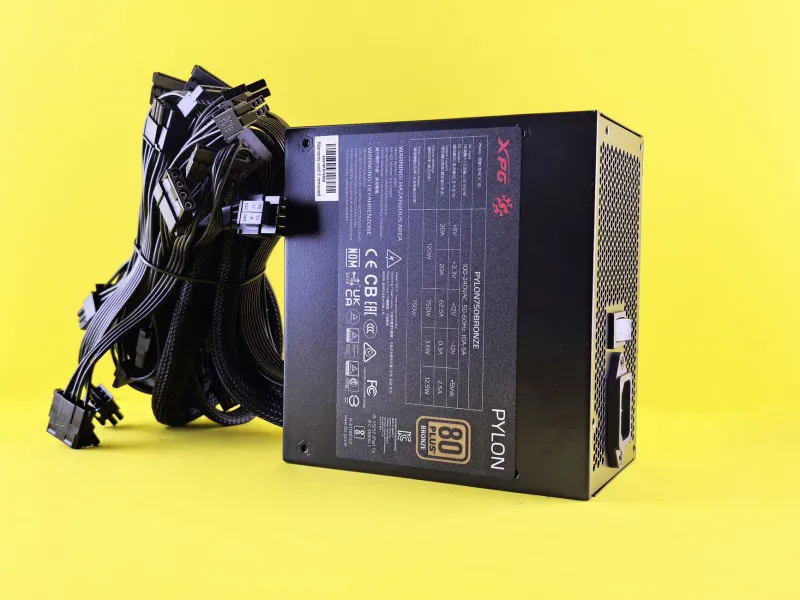
Not every motherboard deserves a CPU upgrade. A low-end board with weak power delivery, no BIOS Flashback, and an old chipset may technically support a newer CPU on paper, but it may not be a good pairing. Check the PSU, the cooler, and the case airflow before you spend money on the chip.
If the board is fussy, the BIOS path is unclear, and the upgrade only saves you £60 over a newer platform, stop. A dead motherboard is not a bargain. Flashback is a useful tool, not a personality. Use it when the support list, the file, and the power all line up, and you will keep the upgrade cheap without turning it into a repair project.