Your Router Is Fine — Your USB Wi-Fi Stick Is the Weak Link in a Victorian Terrace
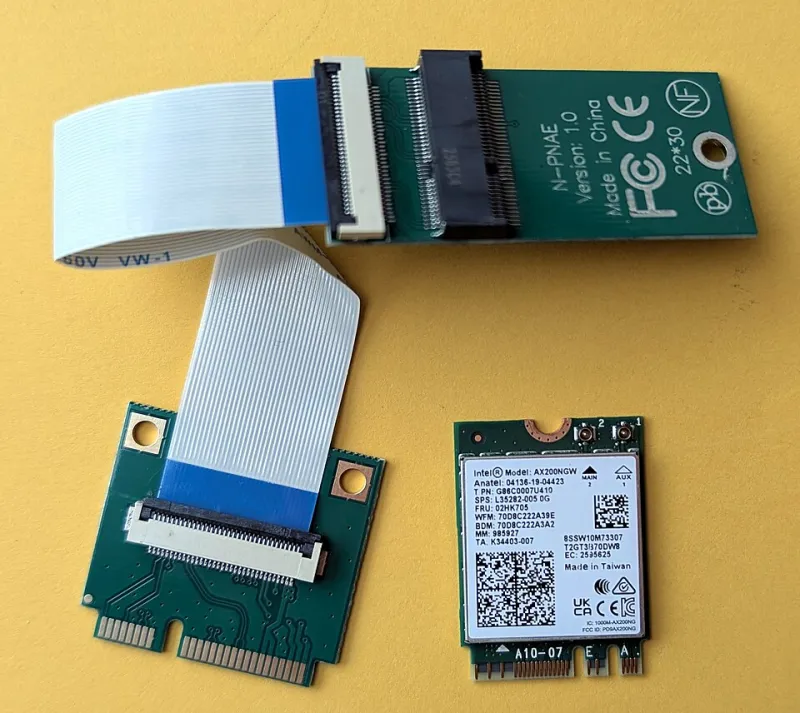
Photo: Siarhei Besarab, CC BY-SA 4.0, via Wikimedia Commons
There’s a particular kind of UK broadband misery that has nothing to do with your ISP. The router is fine. The line syncs at a sensible speed. Yet the PC in the back bedroom drops to two bars, stalls during video calls, and decides that 9pm is the ideal time to forget the 5GHz network exists. In a Victorian terrace, with solid brick walls and a router stuck in the hallway, that’s almost expected. What’s less expected is that the weakest link is often the £10 USB Wi-Fi stick dangling out of the back of the PC.
I’ve been testing this in a fairly typical setup: a mid-terrace brick-built house, router near the front room, desktop two rooms and one chimney breast away. The broadband is nothing exotic — a decent FTTC connection — and Ethernet is not practical without a long, ugly cable run. The question was simple: can a cheap PCIe Wi-Fi card actually beat the USB dongles most people buy, or is that just forum nostalgia?
The USB dongle problem isn’t always the Wi-Fi chip
USB adapters are brilliant for laptops and quick fixes. They’re also asked to do a difficult job in a hostile little environment. A tiny stick has a tiny antenna, often pressed against a metal case, a wall, or the back of a desk. Then it’s plugged into a USB port that may be sharing power and data with a keyboard, a webcam, an external drive, or a front-panel hub with questionable shielding.
That matters because USB 3.0 ports and cables can kick out noise around 2.4GHz. It doesn’t always kill the connection, but it can make it fragile. You get latency spikes, random disconnects, and speeds that look fine in a speed test and terrible in a Teams call. Moving the dongle to a different port or using a short USB extension cable can help, but you’re still working around the format rather than solving the placement problem.
The other issue is physical. A USB stick hanging off the back of a tower is basically an antenna pointed at the floor, a radiator, or the nearest brick wall. Wi-Fi likes height and clear space. It does not like being wedged behind a monitor stand next to a metal filing cabinet.
Why a basic PCIe card punches above its price
The £18 PCIe card I tried was nothing special: a PCIe x1 Wi-Fi 6 adapter with two external antennas and an Intel AX200-class chipset. It came with a low-profile bracket, a screwdriver, and the usual vague leaflet. No RGB, no heatsink the size of a railway station, no “gaming” branding.
The advantage is simple. The card sits inside the case, connected to the motherboard’s PCIe bus rather than a shared USB controller, and the antennas are on the back panel where you can angle them upwards and away from the wall. That last bit is doing more work than most people realise. In a terrace, the difference between an antenna pressed against brick and one angled into the room can be the difference between a stable 5GHz link and a connection that keeps falling back to 2.4GHz.
In my test, the USB dongles were not uniformly awful. A decent branded one held up reasonably well when plugged into a rear USB 2.0 port via a short extension cable. The no-name stick was a disaster: fine for browsing, dreadful for anything that needed sustained throughput. The PCIe card was not magically faster than the broadband line, but it was consistently more stable. Fewer dropouts, lower latency spikes, and much less of the “it’s fine until it isn’t” behaviour.
That’s the real win. You’re not buying more broadband. You’re buying a less flaky path to the router.
What to buy for under £25
You don’t need to spend much, but you do need to avoid the truly anonymous stuff. Look for a PCIe x1 card with an Intel Wi-Fi 6 chipset if you can find one at the price, or a known Realtek alternative with proper Windows 11 driver support. Two external antennas are better than a tiny internal one. A card that also does Bluetooth is handy, but only if your motherboard has a free USB header for the Bluetooth cable — more on that below.
Avoid cards that promise Wi-Fi 7 for £20. That’s not a bargain; that’s a warning sign. You’re better off with older, well-supported Wi-Fi 6 hardware than a badge-engineered adapter with drivers from a website that looks like it was built in 2004.
Check the listing for the interface. Most are PCIe x1, which fits any modern motherboard’s x1, x4, or x16 slot. Some cheap cards are actually M.2 E-key adapters bundled with a PCIe carrier — fine, but read carefully. If you have a tiny mini-PC or a motherboard with no free slot, this whole route is off the table, and you’re back to USB or Ethernet.
Check the slot and the clearance before you order
Open the case and look. You need a free PCIe slot, ideally not one that will be blocked by a graphics card cooler. You also need space at the back of the case for the antenna connectors and enough room to angle the antennas without them pressing against a wall or desk.
If the PC sits in a cubby hole, under a desk, or tight against a chimney breast, no card will fix that. The antennas need a reasonably clear path. In a Victorian terrace, the router’s location matters as much as the PC’s. If the router is boxed in by a TV, a metal cabinet, or a stack of books, move it before you blame the adapter.
Also check that your motherboard has a spare USB 2.0 header if the card includes Bluetooth. It’s an easy thing to miss. Without that header, the Wi-Fi may work perfectly and the Bluetooth will be dead, which is annoying when you’ve already buttoned the case back up.
Windows 11 driver pitfalls
Windows 11 is generally good at finding basic drivers, but “basic” is the word. For Intel-based cards, grab the official driver package rather than relying on whatever Windows Update offers. For Realtek cards, check the vendor’s site and make sure you’re getting the Windows 11 package, not a Windows 7 leftover.
Install the driver before you start troubleshooting signal strength. Then check Device Manager for yellow triangles, and make sure the card isn’t being power-managed into oblivion. In older builds I’ve seen USB selective suspend cause dongle dropouts; with PCIe cards the equivalent gremlin is usually a power-saving setting or an outdated driver. If the card works but Bluetooth doesn’t, the USB header is the first thing to check.
One more thing: don’t install three different driver utilities from three different download pages. Pick one source, install it, reboot, and test. Driver stacks are not Pokemon.
When a card still isn’t the answer
A PCIe Wi-Fi card is a sensible upgrade for a desktop in a typical UK home, especially if you’re currently using a cheap USB stick. It’s cheap, it’s tidy, and it removes a couple of common failure points. But it is not a substitute for Ethernet. If you can run a cable — even a flat one under a carpet edge — do that for a desktop that matters. Wired is still wired.
And if the signal is poor in multiple rooms, a card won’t fix the house. That’s a mesh or access point problem. A single adapter can only do so much when the router is at one end of a terrace and the walls are made of actual brick. In that case, spend the money on better coverage rather than a slightly shinier antenna on the back of the PC.
For under £25, though, the PCIe card is one of the better small upgrades you can make. It won’t turn a bad broadband line into fibre, but it will stop your USB dongle from being the most dramatic thing in the room.