The USB-C Badge on Your New Case Is Only Half the Story in 2026
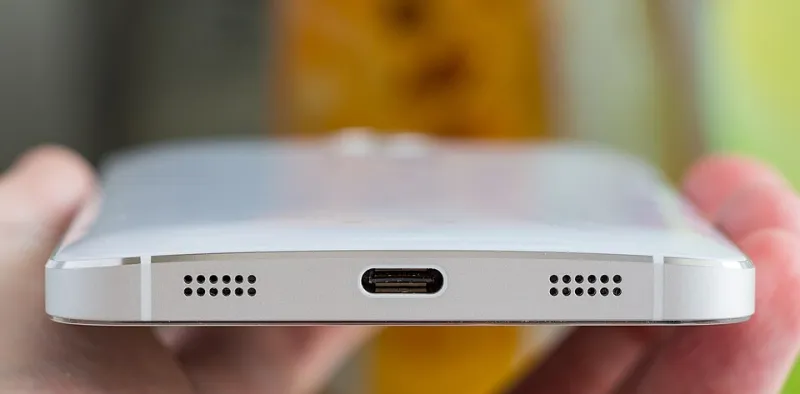
Photo: Ilya Plekhanov, CC BY-SA 4.0, via Wikimedia Commons
It’s one of the quietest disappointments in a new build: you plug a USB-C drive into the front of your shiny 2026 case, and it crawls along at hard-drive speeds. The port looks right. The cable is USB-C at both ends. Nothing is obviously broken. The problem is usually not the plug at all — it’s the header at the other end of the case cable, and the spec sheet you didn’t read closely enough.
USB-C is a connector shape, not a speed rating. A case can put a USB-C socket on the front and wire it to a USB 2.0 header. It can also wire it to a 5Gbps USB 3.2 Gen 1 header, a 10Gbps Type-E header, or a 20Gbps Type-E header. All of those look identical from the outside. That’s the £20 fib: the case maker gets to put “USB-C” on the box, while the actual throughput depends on a header most buyers never check.
USB-C is a plug, not a promise
This is the bit that catches people out. USB-C describes the physical connector — the reversible oval thing that has largely replaced USB-A on phones, laptops and now case front panels. It says nothing about the data rate underneath. USB 2.0 over USB-C is perfectly legal, and it tops out around 480Mbps, which in real terms is roughly 35–40MB/s. A cheap USB 2.0 flash drive feels slow; a USB 2.0 front-panel port makes a fast SSD feel broken.
The useful ladder in 2026 looks like this:
- USB 2.0 — around 480Mbps, or roughly 35–40MB/s in the real world. Fine for a keyboard, mouse dongle or occasional file copy. Not fine for a portable SSD.
- USB 3.2 Gen 1 — 5Gbps, usually around 400–450MB/s with a decent drive. This is the common “USB-C on a budget case” spec.
- USB 3.2 Gen 2 — 10Gbps, often around 900–1,000MB/s with a good NVMe enclosure. This is where front USB-C starts to feel genuinely quick.
- USB 3.2 Gen 2x2 — 20Gbps, potentially 1.5–2GB/s with the right drive and cable. Rare on budget boards, and the case cable has to support it too.
If you mainly plug in a keyboard cable or charge a controller, a 5Gbps port is perfectly pleasant. If you bought the case because you wanted a fast front port for a portable SSD, the header matters.
What the case spec sheet should actually say
“USB-C” on its own is not enough. Look for a speed rating and a connector type. A case listing that says “USB 3.2 Gen 1 Type-C” is telling you it’s a 5Gbps port. “USB 3.2 Gen 2 Type-C” or “10Gbps” is the faster stuff. If the listing only says “USB-C” and nothing else, assume nothing and dig into the manual or PDF spec sheet.
You also want to know what connector is on the end of the case cable. Most modern cases use a keyed Type-E header for front USB-C. Older or cheaper designs may use a 19-pin USB 3.0 header, or even a USB 2.0 header. These are not interchangeable. The Type-E connector is keyed differently, and forcing it into the wrong header is a good way to bend pins and ruin your afternoon.
Don’t trust the retail page alone. Scan, Overclockers UK, Ebuyer and CCL are generally decent at listing specs, but case manuals are the place where the cable type and speed rating usually get spelled out. If the information isn’t there, that’s a warning sign rather than a green light.
What the motherboard spec sheet needs to say
This is the other half of the equation. Your case can have the fastest front USB-C cable in the world, but it will only run as fast as the motherboard header it connects to. Check the board’s internal header list, not just the rear I/O.
Useful phrases to look for:
- USB 3.2 Gen 1 Type-C header — usually 5Gbps. Fine, but not the fast port you might have assumed.
- USB 3.2 Gen 2 Type-E header — usually 10Gbps. This is the one to look for on a performance build.
- USB 3.2 Gen 2x2 Type-E header — 20Gbps, but much less common and usually on higher-end boards.
- USB 3.2 Gen 1 header / 19-pin — that’s the old rectangular USB 3 header, not the same as Type-E.
A board can have a USB-C port on the rear and no internal Type-E header at all. That’s not a fault; it just means the front-panel USB-C port on your case won’t work unless you add a card. Budget B650, B760 and similar boards are worth checking carefully here, because the rear port count often looks better than the internal header selection.
Also check whether the header is shared or disabled when certain M.2 slots or SATA ports are populated. It’s less common than it used to be, but it does happen on compact boards with limited lane budgets. If you’re spending £20 extra on a case with USB-C, you don’t want it quietly switching off because you installed a second NVMe drive.
The £20 fib in practice
Let’s say you pay £85 for a case instead of £65 because the dearer one has a front USB-C port. That’s a reasonable premium if the port is genuinely useful. But if the case cable is USB 2.0, or your motherboard only has a 5Gbps header, you’ve paid for a shape rather than a speed. It still works, and it still looks tidy, but it won’t do what you assumed.
The real-world difference is not subtle. A portable NVMe SSD that manages around 900MB/s on a 10Gbps port will fall to roughly 400–450MB/s on a 5Gbps header. On a USB 2.0 header it will feel like a network drive on a bad day. Charging is another trap: a front USB-C port may be data-only or limited to around 15W, so don’t expect it to charge a laptop at full speed just because the plug fits.
A pre-purchase checklist for 2026 builders
Before you click buy, run through this:
- Decide what the port is for. A keyboard cable or controller doesn’t need 10Gbps. A portable SSD does.
- Read the case manual, not just the product page. Look for the cable type and the speed rating.
- Identify the connector. Type-E keyed is the modern front USB-C header. A 19-pin USB 3 header is different. USB 2.0 is slower and often cheaper.
- Check your motherboard’s internal headers. Count Type-E headers and note their speed. Don’t assume the rear USB-C port means there’s an internal one.
- Check the case cable rating. A 20Gbps motherboard header won’t make a 5Gbps case cable run at 20Gbps.
- Budget for an add-in card if there’s a mismatch. It’s often cheaper than changing the board.
- Avoid passive adapters if speed matters. A USB 2.0-to-USB-C adapter does exactly what it says on the tin.
- Check the return policy. If the case arrives with vague paperwork and a slow cable, you want the option to send it back.
Sensible £15–£30 add-in options
If your case has a Type-E cable but your motherboard doesn’t have the header, a PCIe USB card is the usual fix. Look for one with an internal Type-E header, not just rear USB-C ports. A basic USB 3.2 Gen 2 card with a Type-E header often lands in the £20–£30 range, and it will give the front port a proper 10Gbps feed. Check that the card has the internal header before buying — plenty of cheap cards only give you rear ports.
If your case cable is USB 2.0, an add-in card won’t rescue it. In that situation you’re better off using the rear USB-C port on the motherboard, or buying a case with the right cable in the first place. A £5 adapter that converts a USB 2.0 header to USB-C is fine for a keyboard, but it’s not a speed upgrade.
The boring truth is that USB-C on a case is a feature badge until you match it to a header and a cable that can actually shift data. In 2026, with fast portable SSDs cheaper than ever, it’s worth spending five minutes on the spec sheet before spending £20 on a port that might only be 2.0-fast.