The Clock That Resets Overnight: Diagnosing a PC’s Coin-Cell Battery Before You Blame the Board
There are few PC faults more quietly annoying than a desktop that has forgotten what day it is. You shut it down on Tuesday, boot it on Wednesday, and Windows informs you it is somehow 2019 again. The boot order has reset, the fan curve has vanished, and the machine may even stop at a “Press F1 to continue” screen. It feels dramatic. Often, it is a coin cell.
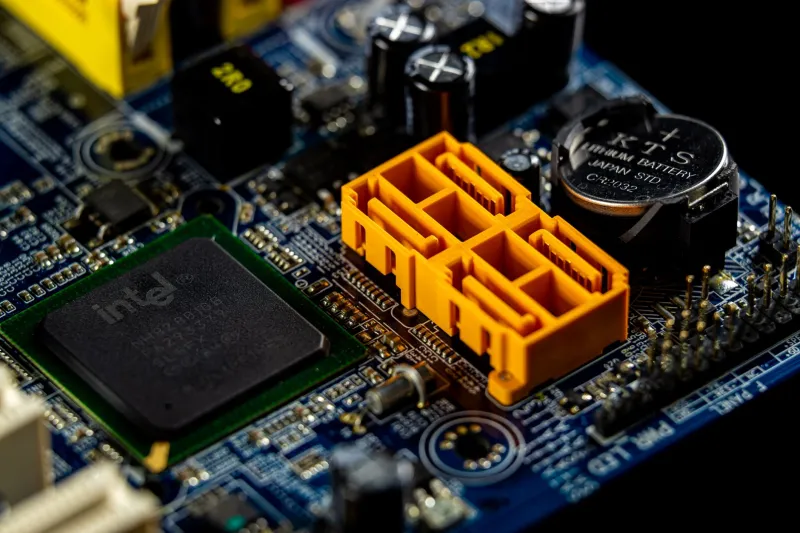
The CMOS battery — almost always a CR2032 in a desktop — keeps a tiny slice of memory alive when the mains power is off. That memory stores the real-time clock and your BIOS/UEFI settings. When the cell runs flat, the board loses its short-term memory. The PC still works, but it starts every day as if it has just come out of the box.
In 2026, a decent CR2032 is still a few pounds from a supermarket, a DIY shed or a reputable online seller. The trick is not buying one. The trick is working out whether the battery is genuinely the culprit, because a weak power supply or an ageing board can mimic the same symptoms.
What a flat CMOS battery actually looks like
Most people expect a dead CMOS battery to produce one clear error message. In practice, UK users tend to see a cluster of smaller clues:
- The date and time reset after the PC has been unplugged or switched off at the wall for a while.
- BIOS or UEFI settings disappear — boot priority, XMP/EXPO memory profiles, fan curves, virtualisation options.
- The machine pauses at a “CMOS checksum error” or “Press F1 to run setup” prompt.
- Windows boots with the wrong time, which can upset file timestamps, certificate checks and scheduled tasks.
- The clock may keep time while the PC is plugged in but lose it overnight when the socket is switched off.
That last point is a useful clue. If the time only drifts after the machine has been fully disconnected from mains power, the coin cell is doing less work than it should. If the clock drifts while the PC is running, or the machine reboots randomly, look elsewhere first.
Check the simple things before you open the case
Start with the least invasive checks. In Windows, confirm the time zone is correct and that the machine is set to sync with a time server. A wrong time zone can look like a hardware fault when it is simply a settings mistake. If you dual-boot Linux, check there too — a confused operating system can write odd time values, though it will not normally wipe BIOS settings.
Next, think about how the PC is powered. Many UK home offices use a switched extension lead or a smart plug that cuts power to the whole desk at night. That is fine, but it means the CMOS battery is carrying the clock every single night. A battery that is merely tired will show up much faster in that setup than in a PC left on standby.
If the PC is a few years old and has never had a battery change, a CR2032 is a sensible first move. They are cheap, common and not difficult to replace on most desktop boards. Laptops are a different story — some use soldered cells or awkward connectors — but this is a desktop job.
Replacing the coin cell without causing a second fault
Before touching anything, shut down and unplug the PC. Hold the power button for a few seconds to drain residual charge. Then open the side panel and find the coin cell. It is usually a shiny silver disc about the size of a 10p coin, clipped into a socket on the motherboard. On some boards it sits under the graphics card, so you may need to remove that first.
Take a photo of the board before you start. Note the battery orientation: the plus sign usually faces up, but check the socket markings rather than assuming. Release the retaining clip gently with a plastic spudger or a fingernail. Do not lever at the socket with a metal screwdriver — there are delicate traces nearby and no prize for saving thirty seconds.
Fit the new CR2032 the same way round, press it until it clicks, and rebuild the PC. When you first boot, enter the BIOS/UEFI and set the date and time. Load your memory profile if you use one, check the boot order, and save. Then boot into Windows and confirm the clock is correct.
Dead battery, tired PSU or failing board?
A fresh coin cell that fixes the reset behaviour is the end of the story. But if the problem continues, do not keep buying batteries. A failing power supply can cause unstable standby voltage, which may lead to settings loss or boot oddities. Random shutdowns, coil whine, or a PC that struggles to wake from sleep are more PSU-shaped clues.
A board fault is also possible, especially on older systems with corrosion around the battery socket or a damaged CMOS clear jumper. Inspect the socket for greenish residue or bent contacts. If the board has been stored in a damp garage or shed, corrosion is worth taking seriously.
One more check: measure the old battery if you have a multimeter. A fresh CR2032 should read close to 3V. A reading well below 2.7V is a strong hint it was past its best. This is not essential, but it stops you replacing a perfectly good cell and calling it diagnosis.
The £3 fix that earns its keep
A CMOS battery is not glamorous, and it will never make a PC faster. What it does is preserve the settings you spent time configuring and stop the machine acting confused every morning. For most desktop owners, a CR2032 is one of the cheapest maintenance parts you can keep in a drawer.
Buy from a shop you trust, check the expiry date, and avoid loose cells rattling around in a kitchen junk box. Replace the battery, reset the clock and BIOS options, and see whether the symptoms stay away. If they do, you have saved yourself a needless upgrade. If they do not, you now have a clearer reason to look at the power supply or the board rather than guessing.