Two Drives, One Highway: The M.2 Slot Check UK Upgraders Skip
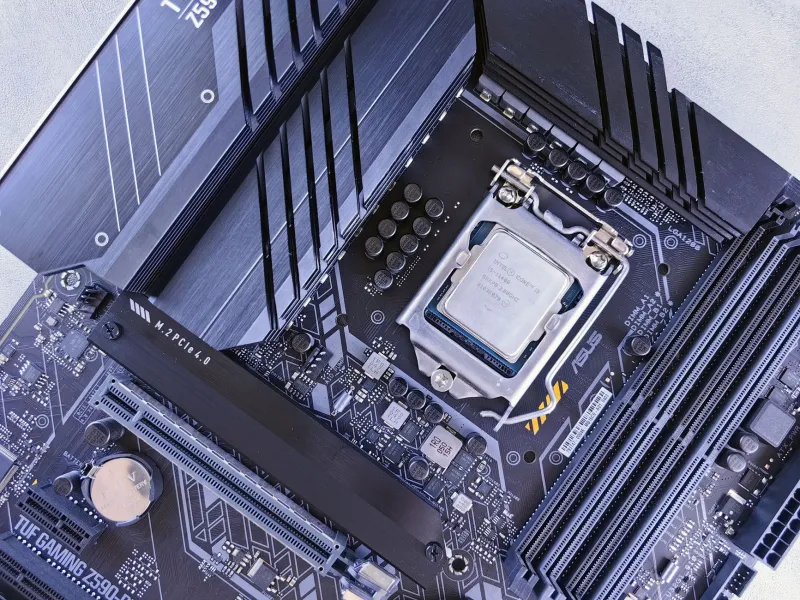
A second M.2 slot looks like free real estate. On a mid-range motherboard it is often the most conditional upgrade path in the box. You spot a 2TB NVMe drive in a Black Friday sale, screw it into the spare slot, and then discover that SATA ports 5 and 6 have gone on holiday — or that your graphics card is now running at x8 instead of x16. None of this is a scam. It is lane sharing, and the only reliable warning is buried in the manual.
What lane sharing actually means
PCIe lanes are the traces that carry data between the CPU, chipset, graphics card, storage and expansion slots. A desktop CPU has a fixed number of them, and the motherboard maker decides how to split them up. An M.2 slot can be wired directly to the CPU or run through the chipset. Populate that slot and the board may disable a SATA controller, switch off a PCIe slot, or split lanes between two devices.
That is not automatically a bad thing. Most budget and mid-range boards are designed around compromise. The problem is buying the drive first and reading the footnote afterwards. In late 2026, with NVMe prices bouncing around and plenty of UK retailers pushing 2TB drives as impulse buys, it is worth spending five minutes with the PDF before you spend £120.
The three lines in the spec table that matter
Motherboard spec pages are not written for humans. They are written for people who already know what 'M2_2 shares bandwidth with SATA_5/6' means. Ignore the marketing headline and look for these three details.
- The electrical mode. A slot listed as 'PCIe 4.0 x4' is the full-fat version. 'PCIe 4.0 x2' is half the bandwidth, which is fine for a backup drive but disappointing for a scratch disk. 'SATA/PCIe' means the slot can take either type of drive, but it may switch modes depending on what you install.
- The shared resource. Look for footnotes such as 'SATA_3 and SATA_4 disabled when M2_2 is populated' or 'PCIEX16_1 runs at x8 when M2_2 is populated'. This is the bit that catches people out.
- The source. Is the slot connected to the CPU or the chipset? A CPU-connected slot can be faster and lower latency, but it is more likely to steal lanes from the graphics card. A chipset-connected slot usually shares the chipset uplink instead, which is less dramatic for most home users.
Here is the kind of comparison to run before checkout:
- Board A: M2_2 is PCIe 4.0 x4 from the chipset. Footnote: SATA_3 and SATA_4 are disabled when M2_2 is populated.
- Board B: M2_2 is PCIe 4.0 x4 from the CPU. Footnote: the main PCIe x16 slot drops to x8 when M2_2 is populated.
- Board C: M2_2 is PCIe 4.0 x2 from the chipset. No SATA ports are disabled.
In plain English: Board A costs you two SATA ports. Board B costs you graphics-card lanes. Board C costs you speed. The right choice depends on which of those you will actually miss.
A five-minute manual check for UK upgraders
Start with the support page for your exact motherboard model, not the retailer listing. Download the PDF manual and open the block diagram. Search for 'M.2', 'shared', 'disabled' and 'SATA'. Then check your current setup.
- Count your SATA devices. If you have two hard drives and an optical drive, losing SATA ports 5 and 6 may be fine. If you have four drives and a bay for a fifth, it is not.
- Look at your graphics card slot. If the board drops the main x16 slot to x8 when the second M.2 is populated, ask whether that matters to you. For most gaming cards it is a small loss; for a high-end workstation card or a card you bought specifically for x16, it is an annoying compromise.
- Check physical clearance. A chunky M.2 heatsink can foul the underside of a graphics card or a large CPU cooler. Measure before you buy, especially in a compact UK spare-room office build.
- Check the slot length and key. Most drives are M.2 2280, but some budget boards have shorter 2242 or 2260 mounts. The manual will tell you.
- Check the BIOS notes. Some boards need a BIOS update before a newer PCIe 4.0 or 5.0 drive is detected reliably. If the drive is not showing up, do not assume it is dead.
When the second slot earns its keep
The second M.2 slot is genuinely useful if you need a fast scratch disk for photo or video editing, a separate drive for a dual-boot setup, a Steam library that loads quickly, or a local backup target that does not tie up a USB port. It is also handy on a small office PC where you want one drive for the OS and one for working files, with a SATA drive for bulk archives.
It is less compelling if you only need bulk storage. A 2.5-inch SATA SSD or a decent external drive may be cheaper and avoids the lane-sharing question entirely. It is also a poor buy if the second slot is x2, the price is close to a SATA drive, and you will never notice the extra sequential speed in day-to-day work. And if the board disables the SATA ports you need for a pair of archive drives, the 'cheap' NVMe upgrade can turn into a storage reshuffle.
BIOS and first boot
Once the drive is in, check the BIOS to confirm it is detected. Set the boot order so your existing Windows install still comes first. In Windows, open Disk Management, initialise the new drive as GPT, and format it as NTFS. Run a quick CrystalDiskMark test and compare it with the slot's rated speed. If a PCIe 4.0 x4 drive is running at roughly half the expected sequential speed, check whether the slot is actually wired as x2 or whether it is sharing lanes with something else.
Keep an eye on temperatures too. A bare drive under a GPU can run warm, and a cheap aftermarket heatsink is fine if the board did not include one. Just make sure it fits.
The bottom line
The second M.2 slot is not a trap if you read the fine print. It is a compromise, like most things on a mid-range board. In 2026, the best upgrade is the one that does not force you to bin a working SATA drive or accept a graphics-card downgrade you did not plan for. Spend five minutes with the manual before you spend £120 on a drive. Your future self — and your SATA ports — will thank you.